GitHub 블로그 만들기 (Windows 10 환경)
개인적으로 기록하는 것을 잘 하지도, 좋아하지도 않았지만 최근 기록의 중요성을 많이 느껴서 학습한 것들을 정리해서 올릴 수 있는 GitHub Pages를 이용한 블로그를 만들려고 한다.
1. Repository 생성
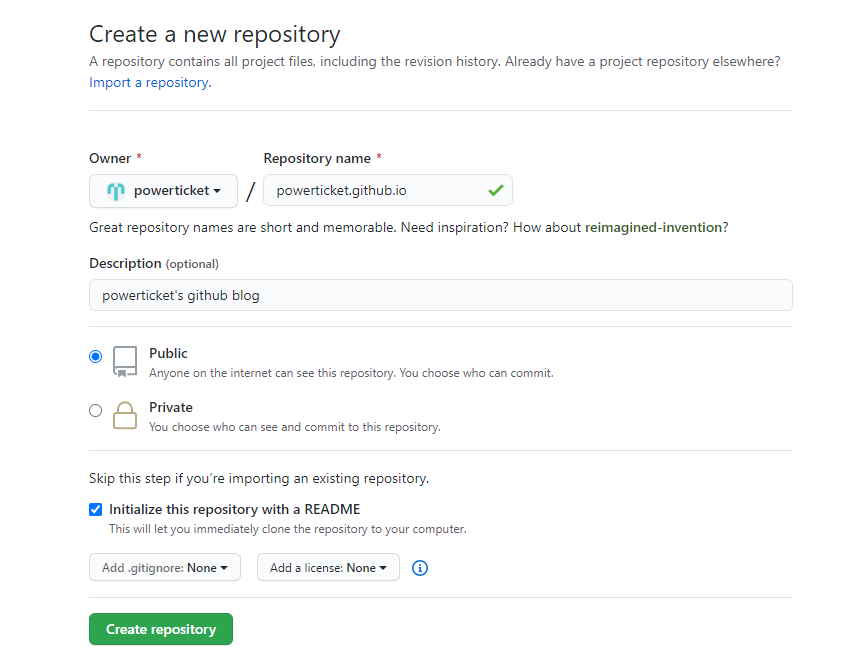
우선 GitHub에 아래와 같이 새로운 Repository를 생성한다.
-
id.github.io로 Repository name을 설정 Initialize this repository with a README체크id.github.io로 접속해서 생성 확인
2. Jekyll theme 선택
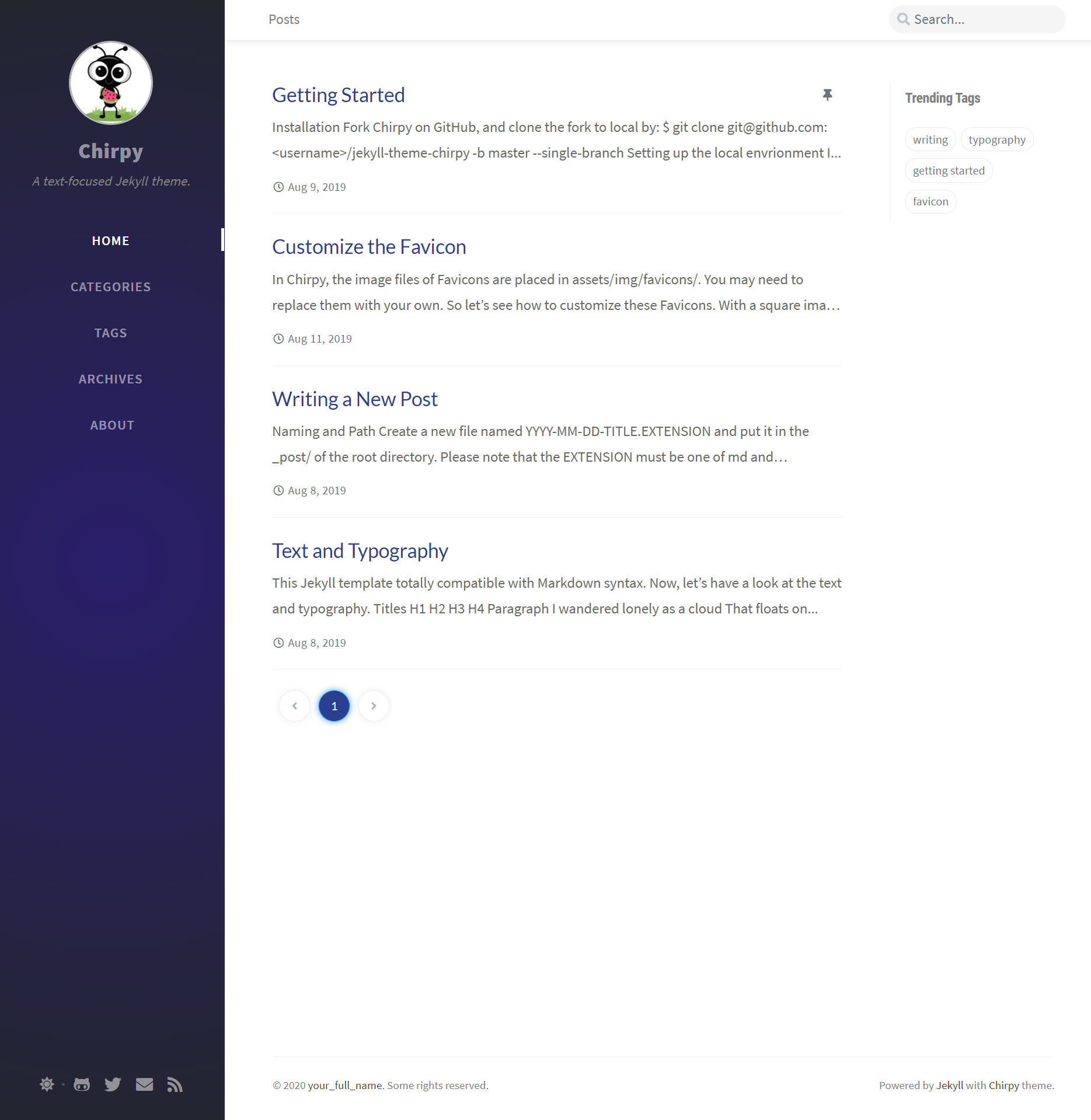
나는 Jekyll theme이 모여있는 Jekyll Themes라는 사이트에서 마음에 드는 테마인 Chirpy를 골랐다. (데모페이지)
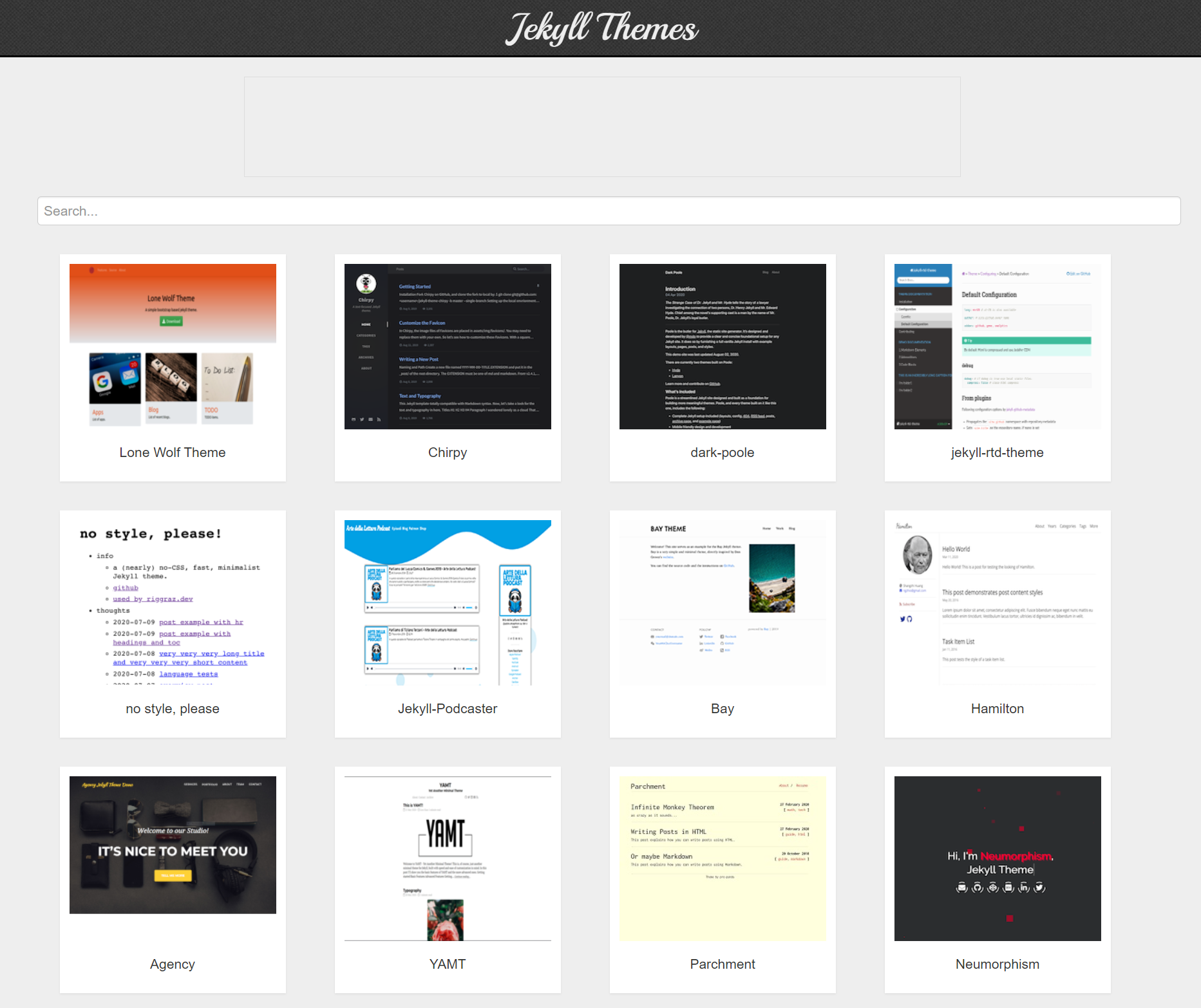
고른 테마의 Github 페이지(Chirpy)로 가서 git clone 또는 zip 다운로드를 통해서 로컬 저장소로 옮겨준다.
3. 로컬 환경에서 페이지 열기
테마가 있는 폴더에서 git bash를 실행하고 아래와 같이 bundle 명령을 실행한다.
$ bundle install
$ bundle exec jekyll serve
해당 테마의 경우 아래와 같은 Dependency Error가 발생하여 Gemfile에 코드 2줄을 추가한 후, 다시 bundle exec jekyll serve를 실행하여 정상적으로 기본 테마 페이지가 로컬 환경에서 열리는 것을 확인하였다.
gem "tzinfo", "~> 1.2"
gem "tzinfo-data"
- 발생한 Dependency Error
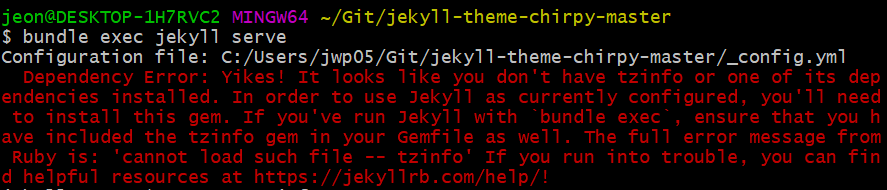
Dependency Error: Yikes! It looks like you don't have tzinfo or one of its dependencies installed. In order to use Jekyll as currently configured, you'll need to install this gem. If you've run Jekyll with `bundle exec`, ensure that you have included the tzinfo gem in your Gemfile as well. The full error message from Ruby is: 'cannot load such file -- tzinfo' If you run into trouble, you can find helpful resources at https://jekyllrb.com/help/!
4. 포스트 작성하기
포스트는 yyyy-mm-dd-title.md의 이름 형식으로 만들어 작성하며, 문서 최상단에 아래와 같이 YAML front matter를 먼저 달아주고 글을 작성하면 된다.
---
title: TITLE
date: YYYY-MM-DD HH:MM:SS +/-TTTT
categories: [TOP_CATEGORIE, SUB_CATEGORIE]
tags: [TAG]     # TAG names should always be lowercase
---
사용 예시
title: “GitHub 블로그 만들기 (Windows 10 환경)”date: 2020-09-17 17:30:00 +0900categories: [Blog, Quick Start]tags: [blog, github pages]
5. GitHub Pages에 배포하기
작성한 블로그는 앞서 만든 id.github.io repository에 push 하면 자동으로 배포되며, 일정 시간이 지난 후 id.github.io를 통해 접속하면 페이지가 생성된 것을 확인할 수 있다.